Automatically, from your location.
- Press 「現在地で天気を使う」 (use weather at my current location).
- Read the explanation and choose 「同意して始める」 (agree and start).
- Allow location access in Chrome and your OS, then check the region name and the forecast.
A 16×16 pixel pet for your browser
Quietly watching from
the corner of your browser.
Your everyday browsing helps it grow.
Weather in the morning, noon and night, and a heads-up before your events.
Pick only the notifications you want.
On the Chrome Web Store / Desktop Chrome / Currently distributed in Japan only
How to get started →See weather notifications
No care actions neededYour growth record stays on this device
A little at a time, in your usual routine.
Researching, writing, working. Clicks, scrolling, key presses and focused time all contribute to its growth. There are no feeding or playing buttons.
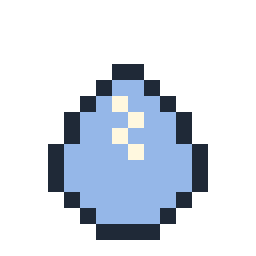
Doesn't talk yet.

Appears, so small.

Grown a little.
Got a good face.
Same one, across every tab.
Its name and growth are shared within the same Chrome profile on the same device. They are not synced to other devices.
From the tiny days to the grown-up days.
Baby, child, adult. Each stage is saved to an album on this device. Look back from the extension, generation by generation, with the name and the date it was recorded.
How the album works and what to know about saving →
If it's sitting where you want to click, grab it and move it. Let go and it lands at the bottom of the screen with a little weight. To focus, press “−” and only a small “+” remains; press “+” to bring it back where it was.
How to move and minimizeWeather notifications / optional
Right on the page you're working on, Mimon says a word about the weather in the morning, noon and night. Not just something that grows — a small companion in the corner.
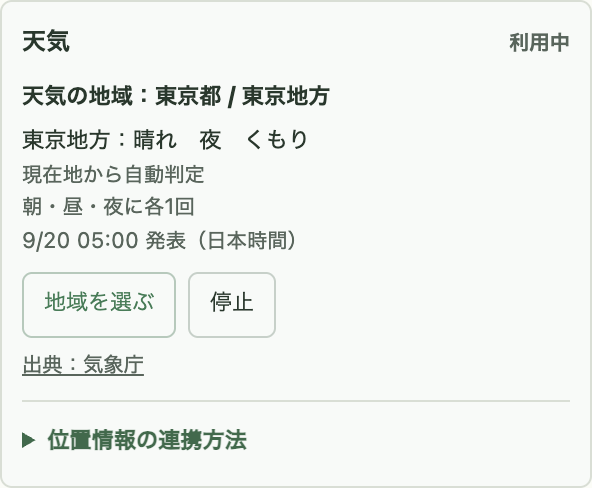
Open Mimon from the extension icon and go to the 「天気」 (Weather) section. After it hatches, you can also click Mimon on the page to open the settings.
While a region is chosen by hand, location is not used.
You can change the region later. When you don't need it, turn it off with 「停止」 (stop); growth carries on as usual.
Weather settings and troubleshootingWeather is off by default. Notifications appear as a speech bubble on the page where Mimon is. They are not shown while it is still an egg or while Chrome is closed, and depending on the browser's state they may be delayed or not appear. This is not a weather-warning alert feature. Weather covers Japan only.
Events too — only when you want.
Connect Google Calendar and Mimon tells you the event name 30, 10 and 5 minutes before it starts, gently, on the page you're working on.
It covers timed events in your primary calendar. Access is read-only; it never changes your events.
About calendar remindersWeather and calendar reminders can each be turned on or off separately. Google sign-in is needed only for calendar reminders. You can also use neither and simply enjoy time with Mimon.
Event reminders are also shown as a speech bubble inside the page. They are not shown while it is an egg or while Chrome is closed, and depending on the browser's state they may be delayed or not appear.
54 bodies, 52 faces, 74 pairs of feet.
A round body, a sleepy face, slightly odd feet. Parts of different colors and shapes combine to make each Mimon. What will the next generation look like?
Adult part combinations
Over 200,000 (theoretical)
54 bodies × 52 faces × 74 feet = 207,792 combinations


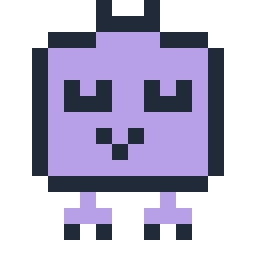
Examples built by combining the real parts.
* This is a simple product of the number of parts used by new generations in v0.7.53. The combinations that actually appear are narrowed by attributes, rarity and other factors. It is not a guarantee that 200,000 different looks exist or that every combination will appear.
From baby to child to adult. Each generation's growth is saved so you can look back later. Even meeting the same look again is part of the record of the Mimon that grew in your browser.
How the album worksThe time you spent together, kept on this device.
Currently, growth state and the album are stored per Chrome profile on the device where Mimon is installed. You can look back at its small days and its growth up to the next generation in the same browser.
If you remove the extension, the album is deleted too.
There is currently no transfer, backup or restore feature. Reinstalling will not bring it back.
It watches, but doesn't record.
It does not store URLs, page text, what you type or your browsing history. Growth uses numbers such as the count of operations and time, and the growth data is kept inside the browser on this device.
Using weather involves communication with the Japan Meteorological Agency, and using calendar reminders involves communication with Google. The current-location method also uses the location services of Chrome and your OS.
Read how data is handledYes. It reads the data saved in the same Chrome profile on the same device. If several people, such as a family, use the same profile, Mimon and the album are shared. To separate them per person, use separate Chrome profiles.
How devices, profiles and saving relate →You can grab Mimon and move it somewhere else. When released it lands at the bottom of the screen. You can also minimize it with “−” and restore it with “+”. The moved position and minimized state apply to that page only and return to the default when the page is reloaded.
How to move and minimize →This site is an introduction and usage guide. It cannot load your growth data or album. Open Mimon from Chrome's extension icon and press 「ミモンのアルバム」 (Mimon's album) in the settings.
How to open the album →No. Neither is needed for growth. If you only want weather, you can set it up without allowing location, using 「地域を選ぶ」 (choose a region).
The settings' 「天気の地域」 (weather region) shows the forecast area, for example 「静岡県 / 西部」 (Shizuoka / West). You can also see whether it is automatic from your location or chosen manually. It is not the current weather of a specific city; it is the forecast for the JMA forecast area.
Checking and changing the region →Yes. With 「地域を選ぶ」 (choose a region) you can use it without allowing location in Chrome or your OS. To use the current-location method, open 「位置情報の連携方法」 (how to connect location) in the settings.
If it won't connect →Mimon is an extension for desktop Google Chrome. There is no smartphone app.
It appears on ordinary web pages. Some pages cannot show extensions, such as Chrome's settings pages, the Chrome Web Store and the PDF viewer.
Click Mimon to open the settings. While it is an egg, open it from Chrome's extension icon. There are collapsible explanations at 「位置情報の連携方法」 under Weather and 「カレンダー連携について」 under Google Calendar.
Open the usage guide →A little presence in the corner of your browser.
Add to ChromeDesktop Chrome / Currently distributed in Japan only